Oracle Repository Command Line Tool
|
Oracle Repository Command Line Tool |


For details of the notation used in these specifications, see the Conventions used in Command Line Tool documentation
For details of the layout of command specifications, see About the command specifications
The command specifications are in alphabetical order in this chapter.
Each command specification describes a Command Line Tool command using the following sections:
|
Section |
Contents |
|---|---|
| Title | Gives the command name, any aliases for the command name enclosed in parentheses, and a plain English name for the command. |
| Mode | Specifies in which modes the command can be used: interactive mode or one-shot mode. |
| Needs |
Specifies what is needed to be able to run the command:
|
| Summary statement | There is a short statement of the purpose of the command. |
| Synopsis | The full synopsis for the command is given in the format described in Conventions used for the syntax of commands. |
| Description | A full description of the command, how it can be used and the effects it has. |
| Arguments | A list of each of the command arguments with details of how the arguments are to be specified. |
| Options | A list of each of the command options with details of their effects. |
| Access rights and repository privileges | A description of any Access rights and repository privileges that are needed for all or some of the functions of the command. |
| File redirection | Where appropriate, describes the features available with the command for redirecting input or output from or to files. |
| Examples | Examples of the use of the command. |
Mode: Interactive or one-shot
Runs commands contained in the specified file.
@<filename>
The @ command runs commands contained in the file specified by the <filename> argument.
The <filename> argument specifies the path of a command file, which is a text file containing a single command on each line.
The command file can contain further @ commands; in this way command files can be nested.
Comments can be included in the file. Comment indicators are:
- At the beginning of each comment line, any of the following:
//
--
rem
- For comments over more than one line, /* and */ enclosing the comment.
By convention, the filename extension used is .rcl.
To locate the file, the current position in the file system is searched first; if the file is not found there, the current position in the repository workarea is searched. The first file found is used.
- <filename>
- File containing the commands to run. By default, the filename extension is assumed to be .rcl. The file can be either a file system file or a file in the repository. Commands must be specified in the same way as if they were being entered in an interactive mode session with the tool. Commands must be on separate lines, one command on each line.
@c:\my_commands.rcl
@\fix_batch.rcl
@\fixes\fix_batch.txt
Mode: Interactive
Needs: Connection, workarea and folder
Sets the specified folder as the repository context or the file system context.
changefolder <folder-name> [-rp|-lo]
The changefolder command sets the context in either the repository or the file system. The folder specified in the <folder-name> argument is used as the new context. A session variable is maintained for the context in each of the repository and the file system. When the changefolder command is used, the appropriate session variable is updated. To display the current context in the repository or in the file system, use the lsworkingfolder command.
- <folder-name>
- Name of the folder to become the new context. Can be specified as a relative or an absolute path. The folder must be a folder in the context workarea.
- -rp | -lo
- Change the context in the repository or in the file system:
-rp (the default) Repository.
-lo File system.
changefolder -lo reports
cf -rp ../fix06/reports
changefolder -rp /project/fixes/fix06
cd -lo ../../reports
Mode: Interactive or one-shot
Needs: Versioned repository, connection and workarea
Checks in the specified checked-out and previously non-versioned objects and automatically synchronizes them with any mapped directories.
checkin <name(spec)>|<pattern>|<IVID> [-s] [-iv] [-br[<branch-name>]] [-nt[<notes-string>]] [-vl<vlabel-string>] [-ty<element-type>] [-co] [-p] [-nosync] [-vp] [-nonew] [-ul | -dl] [-utxt | -wtxt] [<redirect-input>]
Checks in the specified objects and automatically synchronizes them with any mapped directories.
Any objects that were not previously versioned that are identified to be checked in are added to version control.
Note that checking in an object does not automatically check in the container for the object as well.
The objects can be identified using a name, a pattern to match the names of all the objects, an IVID or as a redirected file containing a list of the IRID/IVIDs of all the objects to be checked in. If IVIDs are being used to identify objects, the -iv option must be used, to indicate that the objects are identified by numbers (rather than names). If a list of IRID/IVID pairs for objects to check in is contained in a file, use the <redirect-input> feature.
To distinguish between objects of different element types, use the -ty option.
To check in configurations, include the -ty option giving the element type for configurations.
To switch off synchronization, use the -nosync option.
- <name(spec)>
- The objects to check in; it can be expressed as:
- an absolute path
- a path relative to the repository context
- a fully qualified version-resolved name (see Fully qualified version-resolved names)
<pattern>- Pattern identifying the names of the objects to be checked in. Can be used with the -s option to recurse subfolders.
<IVID>- The IVID of the object to be checked in. The -iv option must be specified.
- -s
- To find objects to check in, recurse through all subcontainers and their contents as well as the top level contents. Use only with the <pattern> argument.
-iv- The argument used to identify the object to be checked in uses an IVID, not a name.
If the <redirect-input> feature is used, to use a file of IVIDs, this option is required to indicate that the content is to be treated as a set of numbers.
-br[<branch-name>]- Check in on the specified branch. For existing objects, enables you to check in objects to a branch other than the one from which they were checked out the object. For new objects, specifies the branch to which the object is to be checked in. See branch rules.
-nt[<notes-string>]- Use the specified string as the checkin notes. See notes rules.
-vl<vlabel-string>- Check in with the specified version label.
-ty<element-type>- Check in only objects of the specified type. To check in configurations, always include this option. To see the element types of objects, use the lsfolder command with the -ty option.
-co- Check in the objects and then check them out again.
-p- Prompt the user to supply the checkin details.
- -nosync
- Do not synchronize the files with the mapped file system before checking them in.
The following options are for use when synchronization is being used, that is, when the -nosync option is not used.
-vp- If new files exist on the file system that have not been synchronized to the repository, create a new version of the parent container by checking it out when checking the files in. (The container remains checked out so that you can undo the changes if required.)
-nonew- Do not upload new files from the file system.
If a file has changed in both the repository and file system, the synchronization direction cannot be resolved. Additionally, for checkin, file synchronization cannot be resolved if the file to be checked in has been modified only in the repository.
The default resolution strategy is to rename the operating system file to <name>.KEEP and download the file. Alternatively, the -ul and -dl options can be used.
-ul- If the synchronization cannot be resolved, upload the file.
-dl- If the synchronization cannot be resolved, download the file.
- -utxt
- Download in UNIX text format (overrides mapping default). See Text conversion on download.
-wtxt- Download in Windows text format (overrides mapping default). See Text conversion on download.
Version access rights are needed on the container and workarea to which the objects are being checked in. If a new object from the file system is being checked in for the first time, Insert access rights are also needed on the container and workarea for the objects.
- <redirect-input>
- Objects to be checked in can be identified in a file containing IRID/IVID pairs. The file must contain a list of IRID/IVID pairs for the objects to be checked in, such as a file created by a checkout or an lscheckout command. The filename is preceded by the redirection indicator which for input is a < symbol. See example.
    checkin myfile.txt
    checkin folder1/*.txt -br"my branch" -nt"some notes"
    checkin fix06-config -ty=Configuration
    checkin fol1\myfile.txt -nt -br -vllabelone -s -vp
    ci folder1{branch;1}/myfile.txt{branch;1} -nt"more notes"
    checkin -iv < all_co.txt
    ci -iv 341668
Mode: Interactive or one-shot
Needs: Versioned repository, connection and workarea
Checks out objects and automatically synchronizes them with mapped folders.
checkout <name(spec)>|<pattern>|<IVID> [-lk] [-s] [-iv] [-nt[<notes-string>]] [-ty<element-type>] [-cpdeps] [-nosync] [-ul | -dl] [-utxt | -wtxt] [<redirect-output>]
The checkout command checks out the checked-in object versions identified in the argument and automatically synchronizes them with any mapped folders.
The object versions can be identified using a name, a pattern to match the names of all the objects, or an IVID. If an IVID is being used to identify object version, the -iv option must be used, to indicate that the object is identified using a number (rather than a name).
To distinguish between objects of different element types, use the -ty option.
To check out configurations, identify the version of the configuration and include the -ty option giving the element type for configurations.
To switch off synchronization, use the -nosync option.
The checkout command can write a list of the IRID/IVID pairs for the checked-out objects to a file, which can then be used later to check the files in again. To create such an output file, use the <redirect-output> feature.
- <name(spec)>
- Identifies the object version to check out; it can be expressed as:
- an absolute path
- a path relative to the repository context folder
- a fully qualified version-resolved name (see Fully qualified version-resolved names)
<pattern>- Pattern identifying the names of the objects to be checked out. Can be used with the -s option to recurse through subcontainers.
<IVID>- The object to be checked out is identified using an IVID. The -iv option must be specified.
- -lk
- Lock the object when it is checked out, preventing anyone else from checking in another version of the object onto the same branch until the lock is removed. If a strict locking policy is in force, every checkout is automatically locked.
-s- To find objects to check out, recurse through all subcontainers and their contents as well as the top level contents. Use only with the <pattern> argument.
-iv- The argument used to identify the object to be checked out uses an IVID, not a name.
-nt[<notes-string>]- Checkout notes. If new notes are supplied when the objects are checked in again, the checkin notes override the checkout notes.
-ty<element-type>- Check out only objects of the specified type. To check out configurations, always include this option. To see the element types of objects, use the lsfolder command with the -ty option.
-cpdeps- The dependency links to any objects referenced by this object are also to be updated (though not the referenced objects themselves).
- -nosync
- Do not synchronize files with the mapped file system before checking them out.
The following options are for use when synchronization is being used, that is, when the -nosync option is not used.
If a file has changed in both the repository and file system, the synchronization direction cannot be resolved. Additionally for checkout, file synchronization cannot be resolved if the file to be checked out has been modified in the file system only.
The default resolution strategy is to rename the operating system file to <name>.KEEP and download the file. Alternatively, the -ul and -dl options can be used.
-ul- If the synchronization cannot be resolved, upload the file.
-dl- If the synchronization cannot be resolved, download the file.
- -utxt
- Download in UNIX text format (overrides mapping default). See Text conversion on download.
-wtxt- Download in Windows text format (overrides mapping default). See Text conversion on download.
Version access rights are needed on the container and workarea to which the object is being checked out.
- <redirect-output>
- The checkout command can output a file containing a list of IRID/IVID pairs for the objects that have been checked out. The file can then be used as input to a checkin command to check the objects in again. To create such a file, the filename is preceded by the redirection indicator which for output is a > symbol. See example.
    checkout myfile.txt
    co folder1/myfile.txt -nt"some notes"
    checkout -iv -lk 104567
    checkout fix06-config{1.1}
    co *.htm* > co_files.txt
Mode: Interactive
Needs: Connection
Commits updates since beginning of session or last commit.
commit
The commit command commits to the repository changes that have been made since the beginning of the session or since the previous commit.
commit
Mode: Interactive or one-shot
Needs: Connection
Compares two object versions and shows the differences.
compare -rp<contributor>|-lo<contributor> [ -rp<base>|-lo<base>] [-fs<output-filename> ] [-p]
The compare command compares two object versions: the <contributor> and the <base>. The <base> object version is the version with which the <contributor> object version is compared. The <base> and the <contributor> need not be different versions of the same object; different objects of the same type can be compared.
The contributor and base can be:
- a file in the file system; in this case, only files stored as text files can be compared
- a version of a file in the repository
- a version of a repository object
If a single repository object version is specified (as the <contributor>), that is, if no <base> object version is specified, the <contributor>object is compared with its immediate predecessor, if one exists.
To display the differences found by the compare operation graphically, use the -p option; the differences are displayed in the Compare window. To write the differences to a file as well as displaying them on the screen, use the -fs option.
If you are comparing Oracle Forms, (files with the .fmb, .olb or .mmb extension), you need to provide some additional information for those Forms that use subclassing or referenced objects for sharing common objects and properties across your modules. For those forms, either prompting must be on (set using the set prompting on command) or you must specify the -p option because additional information needs to be supplied using the graphical interface.
Forms that do not use subclassing or referenced objects can be compared in a similar way to other repository objects.
- -rp|-lo
- Specifies whether the object to be compared is a file system object or a repository object.
-rp Repository object
-lo File system object
<contributor>
<base>- These identify the object versions that are to be compared. Each can take either of the following forms:
- <name> Identifies an object. The version of the object currently available in the workarea is used.
- <name(spec)> Identifies an object version.
-fs<output-filename>- Save the output of the differences between the two versions to the specified file.
-p- Show output graphically. If -p is specified or prompting is on (see set prompt), this command displays the Compare window for the user to inspect differences between the base and the contributor. Otherwise, the differences are displayed in textual form.
Only workareas for which the user has Select access rights are available for comparison.
The following finds the differences between the latest version of file FixDetails.txt visible in the workarea with the previous version:
compare Reports\FixDetails.txt
The following does the same comparison as the previous example, displays the results of the comparison graphically and writes the results to file d:\progress\Updates.txt:
diff Reports\FixDetails.txt -p -fsd:\progress\Updates.txt
The following example compares the version of the repository folder Reports currently available in the workarea with the latest version of the same folder on branch fix06:
difference -rpReports -rpReports{fix06;LATEST}
The following compares the latest version of file FixDetails.txt on branch fix06 with the latest version of the file MainDetails.txt on the MAIN branch:
        compare -rpReports{fix06;LATEST}\FixDetails.txt{fix06;LATEST}
        -rpReports{MAIN;LATEST}\MainDetails.txt{MAIN;LATEST}
Mode: Interactive
Connects to a repository.
connect <username>/<password>[@<alias>]
The connect command connects to a repository. If the repository resides in a remote database, or in a local database with a name other than ORCL, you will need to supply the database <alias>, which is defined in the TNSNAMES.ORA file.
The argument can be given in any of the following forms:
<username>/<password>- Connect to local database with name ORCL. If the local database has a different name, use one of the other forms of the command.
<username>/<password>@<alias>- Connect to the database identified by the <alias>.
<username>@<database-alias>- Connect to the database identified by the <alias>. You are prompted for a password.
    connect dev/password
    connect buildera/manager@build
Mode: Interactive or one-shot
Needs: Connection and workarea
Copies an object from one container to another.
copy <object-name> [<destination-folder-name>] [-s] [-dp] [-cpdeps]
The copy command copies the specified object from one container to another container in the same workarea. You can specify the destination-folder-name, that is, the new folder to which the object is to be copied. You can copy the object to the root, in which case you do not specify a destination-folder-name.
- <object-name>
- Name of the repository object to copy. Can be specified as a relative path name (in relation to repository context) or an absolute path name.
<destination-folder-name>- Name of the container to which the object is to be copied. This container must be in the same workarea as the container from which the object is being copied.
- -s
- If you are copying a container, copies the contents of any of its subcontainers as well.
-dp- Deep copy, which means that the PAC element and all of its children are copied as well (for example, for a table definition, the columns, unique keys, check constraints etc. are also copied). If this option is not used, only the PAC element itself is copied.
-cpdeps- Copy dependencies, which means that any dependency information for the object that has been created by the Dependency Manager tool is also copied. If this option is not used, no dependency information is copied.
copy folder1/mytable folder2 -dp -vp
Mode: Interactive or one-shot
Needs: Connection and workarea
Analyzes the dependencies of the specified objects.
dependencyanalyze <name> | <pattern> [-s] [-inc<file-list>] [-def<pairs-list>] [-ty<element-type>] [-x<XML-DTD-file>] [-mf<map-file>] [-rd] [-fd<filename>] [-ni] [-pa] [-keepxml] [-cpth[<class-path>]] [-nosync] [-nonew] [-vp] [-delos] [-co] [-ul | -dl] [-utxt | -wtxt]
The dependencyanalyze command analyzes the dependencies of the objects identified in the <name> or <pattern> argument. Parsers are used to find the dependencies for files and structured element types. Only objects that have not changed since they were last parsed, or have not yet been parsed at all, are parsed. However, you can use the -pa option to force all objects, whether they have changed or not, to be parsed.
If you are to analyze objects of type File, there must be a mapping between the containers of the files and the file system. The command synchronizes the repository and the file system, unless you use the -nosync option.
For structured element types, which are repository based, the structured parser extracts the dependencies directly from the repository.
For files, a parser interprets the file by extracting details of the things that the file uses, and the things that the file defines which may be used by another file or object.
- <name>
- Name of the repository object to analyze. Can be specified as a relative path name (in relation to repository context) or an absolute path name.
<pattern>- Pattern identifying the names of the objects whose dependencies are to be analyzed. Can be used with the -s option to recurse through subcontainers.
- -s
- To find objects to parse, recurse through all subcontainers and their contents as well as the top level contents. Use only with the <pattern> argument.
-inc<file-list>- Used only for parsing C and Pro*C objects.
- Use to specify a comma-separated list of the file system folders that are required by C program files. Include directories for the C preprocessor. If there are spaces in any of the directory names, enclose the list of names in quotation marks, for example:
"myprog.h,main headers.h,header.h".
-def<pairs-list>- Used only for parsing C and Pro*C objects.
- Use to specify a comma-separated list of the NAME=VALUE pairs that are required by C program files. If any spaces exist in any of the pair names, enclose the list in quotation marks, for example:
"one=two,three=four,five=a lot".
-ty<element-type>- Parse only objects of the specified <element-type>. To see the element types of objects, use the lsfolder command with the -ty option.
-x<XML-DTD-file>- Use to specify that an XML DTD file other than the default is to be used. The XML DTD file provides information needed to interpret the dependency analysis information. The file used by default is the one identified on Windows systems by the registry setting:
<My Computer>\HKEY_LOCAL_MACHINE\SOFTWARE\ORACLE\repcom61\IADTD61
-mf<map-file>- Use to specify that a parser mapping file other than the default is to be used. The parser mapping file specifies which parser is to be used to parse objects, files or blocks of text. The file used by default is the one identified on Windows systems by the registry setting:
<My Computer>\HKEY_LOCAL_MACHINE\SOFTWARE\ORACLE\repcom61\IAMAP61
-rd- For objects that are being parsed, this option removes existing dependency information before analyzing. Only dependencies that are not permanent are removed. Unless the -pa option is also used, the objects that are being parsed are objects that have not yet been parsed or objects that have changed since they were last parsed.
You can use the -pa option to force all objects to be parsed; in this case, if you also use the -rd option, the existing dependency information for all objects will be removed before the objects are parsed.
For objects that have not changed since they were last parsed, this -rd option has no effect if used on its own, without the -pa option.
-fd<filename>- Use to specify the file containing the rules to be used to filter dependencies before they are imported into the repository. The file used by default is the one identified on Windows systems by the registry setting:
<My Computer>\HKEY_LOCAL_MACHINE\SOFTWARE\ORACLE\repcom61\IAFILTER61
-ni- Use the -ni option to prevent the import stage being called when dependencies are analyzed. You could use this option if, for example, you want to examine the XML import file before it is imported into the repository.
-pa- Parse all objects, regardless of whether or not they have changed since they were last parsed.
-keepxml- Do not clean up the XML file after import. This may be of use to provide helpful debug information.
-cpth[<class-path>]- For Java parsing only. Use to specify the class path to be used for Java parsing. If the option is not included, no class path is defined. To use the class path set up in the DA_CLASSPATH session variable, include the -cpth option without an associated <class-path>. See dependencyanalyze class path rules.
- -nosync
- Do not synchronize files with the mapped file system before analyzing dependencies.
The following options are for use when synchronization is being used, that is, when the -nosync option is not used.
-nonew- Do not upload non-versioned files from the file system.
-vp- Versioned repository only.
If new files exist on the file system that have not been synchronized to the repository, create a new version of the parent container by checking it out when checking the files in. (The container remains checked out so that you can undo the changes if required.)
-delos- Delete operating system files that have been removed from the workarea.
-co- Versioned repository only.
Check out a checked-in file if an upload is needed.
If a file has changed in both the repository and file system, the synchronization direction cannot be resolved.
The default resolution strategy is to rename the operating system file to <name>.KEEP and download the file. Alternatively, the -ul and -dl options can be used.
-ul- If the synchronization cannot be resolved, upload the file.
-dl- If the synchronization cannot be resolved, download the file.
- -utxt
- Download in UNIX text format (overrides mapping default). See Text conversion on download.
-wtxt- Download in Windows text format (overrides mapping default). See Text conversion on download.
If synchronization is be being used, Version access rights are needed on the container and workarea to which files are being uploaded and Insert access rights are needed on the container. Repository privilege MANAGE_DEPENDENCY allows a user to Create, update and delete dependencies.
The following performs an analysis on all .c file in the folder repos1 and any subfolders. The files c:\headers and d:\more headers that are needed by the C program files are identified. Some NAME=VALUE pairs that are required by C program files are defined.
dependencyanalyze \repos1\*.c -s -inc"c:\headers,d:\more headers" -def"ONE=TWO,TWO=ONE"
The following analyzes the dependencies of all objects of element type Table Definition in the folder Project Y and its subfolders.
dependencyanalyze "\Project Y\*" -ty="Table Definition" -s
In the following, the analysis is performed on all files in the current context folder and its subfolders that have a name beginning with emp. The parser mapping file used is d:\mappings\mapping.pmf, rather than the default.
da emp* -s -mf"d:\mappings\mapping.pmf"
The following performs an analysis on the object called big_module. The resulting XML is interpreted against a DTD held on the local file system, instead of using the default DTD.
dependencyanalyze big_module -x"c:\my_DTD.dtd"
Mode: Interactive
Needs: Connection
Disconnects the current database connection.
disconnect
The disconnect command commits all data and disconnects the current database connection.
Mode: Interactive or one-shot
Needs: Connection and workarea
Downloads files and containers from the repository to the file system.
download <repos-pattern> <file-system-path> [-s] [-ow] [-upd] [-utxt|-wtxt]
The download command downloads files and containers with names matching the <repos-pattern> from the repository to the file system, without creating new versions of the downloaded files and containers. No mapping between the repository and the file system is needed. To specify what action is to be taken if the files already exist in the file system at the specified destination, use the -ow (overwrite) and -upd (update) options.
- <repos-pattern>
- The repository path (relative or absolute) and name pattern identifying the files and containers to be downloaded.
<file-system-path>- The operating system path to which the files and containers are to be downloaded.
- -s
- To find the files and containers to download, through all subcontainers and their contents as well as the top level contents.
-ow- Overwrite all corresponding files in the file system, whether they are different or not.
-upd- Overweight (update) corresponding files in the file system only if the file system copy is different from the repository copy.
-utxt- Download in UNIX text format (overrides mapping default). See Text conversion on download.
-wtxt- Download in Windows text format (overrides mapping default). See Text conversion on download.
The following downloads all files with the extension .txt from folder fol1 and its subfolders to the specified file system directory:
download fol1\*.txt c:\fol1 -s
The following examples illustrate the use of the -ow and -upd options. They all download file report/x.txt.
Using the following, if there is already a version of this file in the file system, it is not overwritten because neither the -ow nor the -upd option is given:
download report/x.txt d:\repts
Using the following, if there is a version in the file system, it is overwritten by the downloaded version, regardless of whether the two versions are different or not:
download report/x.txt d:\repts -ow
Using the following, if there is a version in the file system, it is overwritten by the downloaded version only if the two versions are different. The repository version is downloaded to update the file system version:
download report/x.txt d:\repts -upd
Mode: Interactive
Needs: Connection and Workarea
Empties the wastebasket of the current context workarea.
emptywastebasket
The emptywastebasket command empties the wastebasket of the current context workarea, permanently removing the wastebasket contents from the repository.
Note: Once the contents have been removed from the wastebasket using this command, they cannot be restored.
Mode: Interactive
Executes an operating system command or invokes the operating system shell.
exec [<os-command>]
The exec command executes the specified operating system command or, if no operating system command is specified, invokes the operating system shell.
If an <os-command> is specified, that command is executed.
If no <os-command> is specified, control passes to the operating system shell. To return from the operating system shell to the Command Line Tool, use the operating system's exit command.
- <os-command>
- The operating system command, with any switches and arguments, that is to be run. The operating system command must be specified without a filename extension.
The process started by this command is run independently of the Command Line Tool. Multiple processes can be started.
exec notepad
Mode: Interactive
Exits from the interactive session.
exit [<return-code>]
The exit command commits all changes and exits from the Command Line Tool interactive session. If a <return-code> is given, it is passed back to the calling environment.
- <return-code>
- An integer to be passed back to the calling environment.
    exit 1
    exit
Mode: Interactive
Needs: Versioned repository, connection and workarea
Exports the specified objects to a database export file.
export <name> [<dump-file>] [<error-file>] -wa|-cfg|-fol [-s] [-res|-unres|-co|-all] [-rbs<rollback>] [-tbs<tablespace>] [-mtd] [-dep] [-p]
The export command exports specified objects from a workarea, a configuration, or a container, into a database export file. You specify whether to export a workarea, a configuration, or a container.
- <name>
- The name of the workarea, configuration, or container to be exported.
<dump-file>- The file to which the exported objects are written.
If this argument is not specified, the database export file has the name of the exported object and file extension .dmp. It is placed in the file system context folder.
<error-file>- The file to be used as a log file for the export operation.
If this argument is not specified, a log file with extension .err is also placed in the file system context container.
- -wa |-cfg|-fol
- Specifies what is being exported:
Option
Description
-wa Export a workarea. Use this in conjunction with the -res | -unres options, the -co option, and the -all option. -cfg Versioned repository only.
Export a configuration.-fol Export a container. Use this in conjunction with the -s option.
- -s
- Used in conjunction with the -fol option. Export all members of the container, including subcontainers and all their contents. If this option is not specified, all members of the container including the subcontainers are exported, but not the contents of the subcontainers.
-res|-unres|-co|-all- Used in conjunction with the -wa option. One and only one of these options must be specified to define which objects are to be exported:
Option
Description
-res Export only versions visible in a resolved view. This exports all objects or object versions defined by the workarea specification, but not the specification itself. -unres Versioned repository only.
Export all versions included in all rules or configurations. This exports all objects or object versions defined by the workarea specification, together with the specification itself.-co Versioned repository only.
Export only checked-out objects and objects not under version control, but not the workarea specification. Containers are exported irrespective of state, because they are required to give context to the other checked-out objects.-all Versioned repository only.
Export all versions of all objects. This exports the entire version history of every object defined by the workarea specification, together with the specification itself.
- -rbs<rollback>
- Specifies a rollback segment to use for the export operation. Note that an export or import operation operating on large volumes of data may require a large rollback segment. If this option is not specified, a default rollback segment is used; if the session variable ROLLBACK_SEGMENT is set, that is used.
-tbs<tablespace>- Specifies a tablespace to store the temporary tables (also known as the XT tables) used by the operation, together with their indexes.
-dep- Export any dependency information for the exported objects that has been created by the Dependency Analyzer tool. Note that including dependency information could result in exporting a very large amount of repository data.
-mtd- Export data from Oracle schemas that have been registered in the repository. This option is for use where such data exists in the workarea, container or configuration selected for export. Only a repository owner can export registered meta data.
-p- Prompt the user for details when needed.
The following exports the folder entitypack and exports subfolders and their contents. Where necessary, it prompts the user for information.
export -fol entitypack -s -p
Mode: Interactive
Displays help on Command Line Tool commands.
help [<command-name>]
Used without an argument, the help command displays a list of the Command Line Tool commands.
Used with an argument specifying a particular Command Line Tool command, the help command displays details of the command, its synopsis, arguments and options.
- <command-name>
- Specifies the Command Line Tool command for which help information is to be displayed.
    help
    help checkin
    help ci
Mode: Interactive
Needs: Connection and workarea
Imports contents of a database export file to the current context in the connected repository.
import <dump-file> <import-name> -div|-mrg|-rep [-log<filename>] [-rbs<rollback>] [-tbs<tablespace>] [-p]
The import command imports data from a database export file identified in the <dump-file> argument. The data to be imported can consist of a workarea, a configuration, or a container. The database export file has the file extension .dmp. You specify the destination of the imported data using the <import-name> argument.
The Command Line Tool cannot remove from the imported data references to objects that do not exist in the repository into which the data is being imported.
A log file with extension .err is created and placed in the current file system context container.
- <dump-file>
- The database export file that contains the data to be imported.
<import-name>- The new name to be used for the workarea, when it has been imported.
- -div|-mrg|-rep
- Specifies whether the data is to be imported as new objects or object versions, or as updates to existing objects. For more details of each option, click the link text.
Option
Description
-div diverge - create brand new objects -mrg Versioned repository only.
merge - create new versions where objects exist-rep replicate - update existing object versions For details of what the full effects of each of these options is, see Importing workareas, configurations and containers.
- -log<filename>
- Specifies the path and name of the file to be used to contain the error log data from the import operation. If this option is not specified, a file called errlog.err is used, in the current file system context folder.
-rbs<rollback>- Specifies a rollback segment to use for the import operation. Note that an export or import operation operating on large volumes of data may require a large rollback segment. If this option is not specified, a default rollback segment is used; if the session variable ROLLBACK_SEGMENT is set, that is used.
-tbs<tablespace>- Specifies a tablespace to store the temporary tables (also known as the XT tables) used by the operation, together with their indexes.
-p- Prompt the user for details when needed.
import entitypack -mrg -p
This section describes the effects of using the options for the import command that specify how workareas, configurations and containers are imported to the target repository.
Creates new objects in the repository for all the data in the import file, regardless of whether the imported objects already exist in the target repository.
Importing a ...
Effect
Workarea (unresolved) If you are importing a workarea that has unresolved version conflicts, this option creates a new workarea based on the workarea specification, including all the object versions referred to in the specification. All configurations, rules and container memberships are preserved.
Non-versioned objects, and checked-out objects with no version history, are imported as new objects.
Checked-in objects are imported unchanged. That is, the first version is checked in on the MAIN branch, and the others are checked in on their original branches.
Workarea (resolved) If you are importing a workarea with no version conflicts, this option loads the objects into the target workarea, creating a single version of each object.
Objects that were checked out or not under version control in the source repository are imported as new objects.
Objects that were checked in in the source repository are created as checked-in objects on the MAIN branch.
Container Loads the container and its contents into an existing workarea. Container can be imported as subcontainer, even if it is a root container in the source repository.
Container name must be unique within its target context (i.e., workarea root container or subcontainer).
Checked-out objects are imported as new objects. Checked-in objects are imported unchanged on the MAIN branch.
If you choose the Recurse option, the import includes the container and its contents, together with all its subcontainers and all of their contents.
Configuration Creates a new configuration containing all objects specified for import. Objects are imported checked in, and are placed on the MAIN branch with a single version. The original version label is maintained.
With this option, if an object you are importing already exists in the repository, a new version is created for the imported data. If an object you are importing does not already exist in the repository, a new object is created.
Importing a ...
Effect
Workarea Loads the objects into the target workarea. A single version of each object is created.
Objects that were checked out or not under version control in the source repository are imported as new objects.
Objects in the source repository that were checked in are created as checked-in objects on the MAIN branch. However, if a new version is added subsequently, this is checked in on the default branch for the workarea.
Container Loads the container and its contents into an existing workarea. Container can be imported as subcontainer, even if it is a root container in the source repository.
Container name must be unique within its target context (i.e., workarea root container or subcontainer).
Checked-out objects are imported as new objects. Checked-in objects are imported unchanged.
If you chose the Recurse option for export, the import includes the container and its contents, together with all its subcontainers and all of their contents.
Configuration Creates a new configuration containing all objects specified for import. Objects are imported checked in, and are placed on the MAIN branch with a single version. The original version label is maintained.
Caution: This option is for advanced users wishing to synchronize source and target repositories (i.e., it provides a way of replicating repository data on another database). Because it can overwrite data on the target repository, this option should be used with care.
If an object version you are importing already exists in the repository, this option overwrites the existing version even if that version is checked in. However, if a different version of the object already exists (i.e., it has the same IRID object identifier but a different IVID version identifier), a new version is created. If the object you are importing does not already exist in the repository, a new object is created.
Versioned objects are loaded with the same IRID and IVID values that they had in the source repository. If an object with the same IRID and IVID values already exists in the target repository, it is updated with the properties from the imported data.
Importing a ...
Effect
Workarea (unresolved) Creates a new workarea based on the workarea specification, including all the object versions referred to in the specification. All configurations, rules and container memberships are preserved. Workarea (resolved) Loads the objects into the target workarea, creating a single version of each object. Container Container retains all the properties from the source repository.
If you chose the Recurse option for export, the import includes the container and its contents, together with all its subcontainers and all of their contents, retaining all the properties from the source repository.Configuration Configuration retains all the properties from the source repository.
Mode: Interactive or one-shot
Needs: Versioned repository, connection and workarea
Locks an object that has been checked out without a lock.
lockcheckout <name>
The lockcheckout command is used for objects that are checked out without a lock. It locks the object so that other users are prevented from either locking it or from checking it back in to the same branch until the lock is removed.
Note: You can change the lock status only if a strict locking policy is not in force.
To remove the lock from a checkout, use the rmlockcheckout command.
- <name>
- The object whose checkout is to be locked, expressed as an absolute path or in relation to the repository context container.
Version access rights are needed on the parent container of the object that is to be updated.
lockcheckout myfile.txt
Mode: Interactive or one-shot
Needs: Versioned repository and connection
Lists branch labels.
lsbranch [<pattern>] [-nt] [-nh]
The lsbranch command lists all available branch labels matching the pattern specified in the <pattern> argument or, if no argument is given, lists all available branch labels. A branch is always identified by its label.
- <pattern>
- If a <pattern> is specified, only branch labels that match the pattern are listed. Otherwise, all branch labels are listed.
- -nt
- Show notes for the branch labels.
-nh- Do not show headings in the display.
Only branch labels on which the user has Select access rights are visible. The user may have Select access rights and will be able to use the branch label but may not be able to perform updates, inserts or deletes, depending on other rights and privileges.
The following lists all branches with names starting with mybranch:
lsbranch mybranch*
The following lists all available branch labels but the listing does not include headings and formatting:
lsbranch -nh
Mode: Interactive or one-shot
Needs: Versioned repository, connection and workarea
Lists objects that are presently checked in.
lscheckin [<name(spec)>|<pattern>] [-wa<workarea>] [-br<branch-name>] [-o[<owner>]] [-s] [-vl] [-bs] [-nt] [-c] [-ir] [-iv] [-nh]
The lscheckin command lists specified details for specified objects that are checked in in the repository. If a <name(spec)> or <pattern> is given, only objects matching that are listed. Otherwise, all objects checked in in the workarea are listed. By default, objects in the context workarea are listed. You can list objects in a different workarea using the -wa option.
- <name(spec)>|<pattern>
- If this argument is specified, only objects whose names match the <name(spec)> or the <pattern> are displayed. If the argument is not given, all objects are considered for listing.
- -wa<workarea>
- List only objects in the specified <workarea>.
-br<branch-name>- List only objects checked in on the specified branch.
-o[<owner>]- If an <owner> is given, list only objects owned by that <owner>. If no <owner> is given, show the owner of each checkin.
-s- List objects by recursing through all subcontainers and their contents as well as the top level contents.
-vl- Show the version labels of the objects.
-bs- Show the branch and sequence of the checkins.
-nt- Show the checkin notes.
-c- Show the date the checkin was created.
-ir- Show the IRIDs of the objects.
-iv- Show the IVIDs of the objects.
-nh- Do not show headings in the display.
    lscheckin fol1{main;latest}\bob{main;latest} -o -nt
    lsci -nh
    lscheckin fol1\*.* -brMybranch -o -vl -nt -c
    lscheckin dave.txt -nt
Mode: Interactive or one-shot
Needs: Versioned repository, connection and workarea
Lists objects that are checked out.
lscheckout [<name> | <pattern>] [-wa<workarea>] [-br<branch-name>] [-o[<owner>]] [-s] [-vl] [-bs] [-lk] [-nt] [-c] [-ir] [-iv] [-nh] [<redirect-output>]
The lscheckout command lists objects that are checked out. By default, full path names are listed. To list IVIDs for the checked out objects, use the -iv option; to list the IRIDs, use the -ir option.
The lscheckout command can write a list of the IRID/IVID pairs for the checked-out objects to a file, which can then be used later to check the files in again. To create such an output file, use the <redirect-output> feature. All the details you have requested are displayed on the screen, but only IRID/IVID pairs are written to the file. The file can then be used as input to a checkin command.
- <name> | <pattern>
- If this argument is specified, only objects whose names match the name or the pattern are displayed. If the argument is not given, all objects are considered for listing.
- -wa<workarea>
- List only objects in the specified <workarea>.
-br<branch-name>- List only checkouts on the specified branch.
-o[<owner>]- If an <owner> is given, list only objects owned by that <owner>. If no <owner> is given, show the owner of each checkout.
-s- List objects by recursing through all subcontainers and their contents as well as the top level contents.
-vl- Show the version labels of the objects.
-bs- Show the branch and sequence of the checkouts.
-lk- Show the lock status of the checkouts.
-nt- Show the checkout notes.
-c- Show the creation date for the objects.
-ir- Show the IRIDs of the objects.
-iv- Show the IVIDs of the objects.
-nh- Do not show headings in the display.
- <redirect-output>
- The lscheckout command can output a file containing a list of IRID/IVID pairs for the objects that have been checked out. The file can then be used as input to a checkin command to check the objects in again. To create such a file, the filename is preceded by the redirection indicator which for output is a > symbol. See example.
    lscheckout *.*
    lsco
    lscheckout fix06* -o -wa"release"
    lscheckout * -lk
    lscheckout *.txt -nh > all_co.txt
Mode: Interactive or one-shot
Needs: Versioned repository and connection
Lists configurations.
lsconfig [<pattern>] [-br<branch-name>] [-t] [-m] [-nh]
The lsconfig command lists configurations; is a <pattern> is specified, only those whose names match the pattern are listed; otherwise, all configurations are listed. To list only configurations for a particular branch, use the -br<branch-name> option. The members of a configuration can be listed; use the -m option.
- <pattern>
- Only configurations whose names match the specified pattern are listed.
- -br<branch-name>
- List only configurations on the specified branch. See branch rules.
-t- List only the latest configurations.
-m- List configuration members.
-nh- Do not show headings in the display.
Branches are available to all users.
    lsconfig "Build Config" -m
    lsconfig pjh* -brpjh_branch -t
Mode: Interactive
Needs: For working with repository objects, connection and workarea needed
Lists containers and their contents.
lsfolder [<container-pattern>|<pattern>] [-rp|-lo] [-pth] [-s] [-ir] [-iv] [-vl] [-bs] [-c] [-u] [-st] [-lk] [-o] [-ty] [-nh]
The lsfolder command lists objects within a repository container or a file system directory. By default, the contents of the current context are displayed. Either all objects are listed or only those specified by the <container-pattern> or <pattern>.
By default, the repository contents are listed (option -rp). To show the file system contents, use the -lo option.
Using other options, you can select the sorts of detail to be listed about the folder contents.
- <container-pattern>
- List the contents of the container or directory specified by its full or relative path; if a wildcard is used in the specification, list only contents whose names match the pattern.
<pattern>- List only the contents whose names match the specified pattern.
- -rp | -lo
- Specifies whether the list is for the repository or the file system:
-rp (the default) Repository.
-lo File system.
-pth- Show the full paths of the contents. Otherwise, names are shown relative to the parent container or directory.
-s- List objects by recursing through all subcontainers and their contents as well as the top level contents.
-ir- Show the IRIDs of the objects.
-iv- Show the IVIDs of the objects.
-vl- Versioned repository only.
Show the version labels for the objects.
-bs- Versioned repository only.
Show the branch and sequence of the objects.
-c- Show the creation date for the objects.
-u- Show the last updated date for the objects.
-st- Versioned repository only.
Show the object state for the objects.
-lk- Versioned repository only.
For checked-out objects, show the lock status.
-o- Show the owners of the objects.
-ty- Show the element type of the objects.
-nh- Do not show headings in the display.
Only objects for which the user has Select access rights are visible. The user may have Select access rights and be able to view objects but may not be able to perform updates, inserts or deletes, depending on other rights and privileges.
    lsfolder -rp *.* -nh
    lsfolder -lo folder1
    lsfolder /folder1/folder2/03.* -rp -ir -iv -vl -lk -o -u -c -ty
    lsfolder folder2/folder3 -s
Mode: Interactive
Needs: Connection and workarea
Lists mappings between the repository and the file system for the context workarea.
lsfoldermap [<pattern>]
The lsfoldermap command lists mappings between the repository and the file system for the context workarea, either all mappings or only those for repository containers whose names match the specified <pattern>.
- <pattern>
- List only the mappings for repository containers whose names match the specified pattern.
lsfoldermap davefol*
Mode: Interactive
Needs: Versioned repository
Lists all objects in the repository Lost+Found storage area.
lslostandfound [-ir ] [-iv] [-vl] [-bs] [-ty] [-st] [-lk] [-nh]
The lslostandfound command lists all objects in the repository Lost+Found storage area, which is a storage area for those objects that have no owning container anywhere in the repository.
- -ir
- Show the IRIDs of the objects.
-iv- Show the IVIDs of the objects.
-vl- Versioned repository only.
Show the version labels of the objects.
-bs- Versioned repository only.
Show the branch and sequence of the objects.
-ty- Show the element type of the objects.
-st- Versioned repository only.
Show the object state for the objects.
-lk- Versioned repository only.
For checked-out objects, list the lock status.
-nh- Do not show headings in the display.
    lslostandfound -ty -vl -lk
    lslaf
Mode: Interactive
Needs: Connection
Lists policies and their settings.
lspolicy [<pattern>]
The lspolicy command lists policies, either all policies or only those whose names match the specified pattern, and for each, lists whether it is currently switched on or off.
- <pattern>
- Only policies whose names match the specified pattern are listed.
    lspol
    lspolicy auto*
Mode: Interactive
Needs: Versioned repository and connection
Lists all rules available for specifying workareas and configurations.
lsrules [<pattern>]
The lsrules command lists rules available for specifying workareas and configurations, either all rules or only rules whose names match the specified <pattern>.
- <pattern>
- Only rules whose names match the specified pattern are listed.
Rules are available to all users.
    lsrule *LATEST*
    lsru EXCLUDE*
Mode: Interactive
Needs: Connection
Lists objects in wastebasket for the context workarea.
lswastebasket [-vl] [-ir] [-iv] [-dt] [-by] [-ty] [-st] [-lk] [-nh]
The lswastebasket command lists the objects that have been placed in the wastebasket for the context workarea. All the details specified by the options are listed. The wastebasket for a workarea is an area into which repository objects are placed when they are deleted.
- -vl
- Versioned repository only.
Show the version label for objects.
-ir- Show the IRID for objects.
-iv- Show the IVID for objects.
-dt- Show the delete date for objects.
-by- Show the user who deleted the objects.
-ty- Show the element type for objects.
-st- Versioned repository only.
Show the object state for objects.
-lk- Versioned repository only.
For checked-out objects, show the lock status.
-nh- Do not show headings in the display.
lswastebasket -vl -ty
Mode: Interactive or one-shot
Needs: Versioned repository and connection
Does one or both of the following:
- Lists workareas accessible to the present user, optionally including the workarea specifications.
- Writes the workarea specification of a single workarea to a file.
lsworkarea [<pattern>] [-spec] [-fs<filename>] [-br] [-desc] [-kind] [-o] [-nh]
The lsworkarea command lists workareas accessible to the present user. The workarea specifications for the workareas can be included in the list using the -spec option.
Using the -fs<filename> option, a single workarea specification can be written to a file. If the <pattern> identifies a single workarea, the specification of that workarea is written to the file; otherwise, the specification of the first workarea listed is written to the file.
- <pattern>
- List workareas whose names match the specified pattern. If no <pattern> is given, all workareas are listed.
- -spec
- Show the workarea specifications in the list.
-fs<filename>- Output a workarea specification to a file. The specification written to the file is that for the only or the first workarea identified by the <pattern> argument.
-br- Versioned repository only.
Show the default branch for each workarea.
-desc- Show the workarea description for each workarea.
-kind- Shows whether the workarea is private or shared.
-o- Show the owner of each workarea.
-nh- Do not show headings in the display.
Only workareas to which the user has Select access rights are visible. The user may have Select access rights and be able to view the workarea but may not be able to perform updates, inserts or deletes, depending on other rights and privileges.
    lsworkarea -spec
    lsworkarea *fix06*
    lsworkarea fix06_pjh > c:\fixworkspec.txt
    lswa -nh
Mode: Interactive
Needs: For -rp option, needs connection and workarea. For -lo option, needs folder.
Lists the path of the current repository container or file system directory.
lsworkingfolder [-rp|-lo]
The lsworkingfolder command lists the path of either the current repository container or the current file system directory.
- -rp | -lo
- Specifies whether the list is for the repository or the file system:
-rp (the default) Repository.
-lo File system.
    lsworkingfolder -lo
    lswf -rp
Mode: Interactive or one-shot
Needs: Versioned repository
Merges two versions of the same object, using as a base a specified version or the common ancestor of the two versions.
merge <target> <source> [<base>] [-p]
The merge command takes two contributor object version, the <target> and the <source>, compares them to a base version. From the comparison, the merge creates a result version. The result is the target version updated and still checked out. The target version becomes available as a new version only when it is checked in.
A merge operation can be performed on the following when under version control:
- structured objects (standard repository objects including container objects)
- files, both text and binary (including Oracle Forms)
By default, the base used for the comparison is the common ancestor of the two versions. Using the merge command, you can specify that the merge is to use a different <base> version.
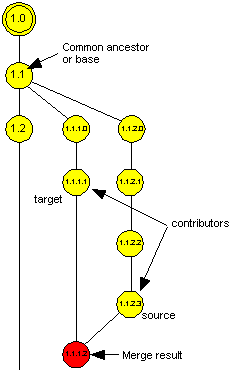
For example, by default, merging version 1.1.2.3 to target version 1.1.1.1 in the diagram uses the common ancestor version 1.1 as the base for the merge. The result is version 1.1.1.2. If you need to merge in changes only from the final stages of a branch, using the merge command, you can specify a different base for the merge.
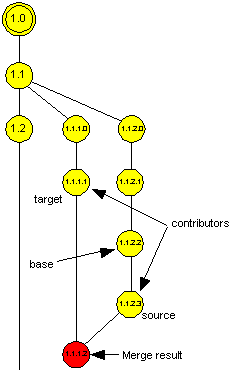
For example, if you want to merge in the changes between version 1.1.2.2 and version 1.1.2.3 into version 1.1.1.1 in the diagram, you could specify that the base for the merge is to be version 1.1.2.2.
If you are merging Oracle Forms, (files with the .fmb, .olb or .mmb extension), you need to provide some additional information for those Forms that use subclassing or referenced objects for sharing common objects and properties across your modules. For those forms, either prompting must be on (set using the set prompting on command) or you must specify the -p option because additional information needs to be supplied using the graphical interface.
When binary files other than Oracle Forms are being merged, the merge operation does not compare the source and target versions but instead copies the contents of the source over the contents of the target. No differences in the target will be retained. To retain any of the information in the target, you need to perform a manual merge.
If you do a merge of binary files, a message is displayed explaining that the source version is being copied over over the target.
- <target>
- The object version into which the merge is to take place. It can take one of the following forms:
<name(spec)> - This identifies an object version.
The target object must be checked out.
<source>- The object version whose changes are to be merged into the <target> version. It must be in the form of a <name(spec)>.
<base>- The base version to be used for the merge instead of the common ancestor that would be used by default. It must be in the form of a <name(spec)>. If this argument is not specified, the common ancestor is used as the base.
- -p
- Display merge details graphically. The details are displayed in the Merge window.
The following merges the changes made so far to file report.txt on the fix06 branch to file report.txt on the MAIN branch:
merge doc/report.txt{MAIN;LATEST} doc/report.txt{fix06;LATEST}
The following merges the changes made on the fix06 branch to file myfile between versions 3 and 4 to the latest version on the MAIN branch. The <source> is version 4 and the <base> is version 3.
merge myfile{MAIN;LATEST} myfile{fix06;4} myfile{fix06;3}
Mode: Interactive or one-shot
Needs: Versioned repository and connection
Creates a branch label.
mkbranch <branch-label> [-nt<branch-notes>]
The mkbranch command creates a new branch label, optionally with notes to be associated with it.
When you create a new workarea using the mkworkarea command, you can set the default check-in branch for the workarea. To set the new branch to be the default check-in branch for an existing workarea, use the updworkarea command.
To set the branch as the default check-in branch for the session, set the BRANCH session variable using a set branch command.
- <branch-label>
- The branch label to be created.
- -nt<branch-notes>
- Notes to be associated with the new branch label.
To create new branch labels, the MANAGE_BRANCH_LABEL repository privilege is needed.
    mkbranch mybranch
    mkbranch milestone3 "Work for milestone 3"
Mode: Interactive or one-shot
Needs: Connection and versioned repository
Creates a configuration.
mkconfig <config-name> [-wa<workarea-name> | -ru<rule> | -fs<filename>]
The mkconfig command creates a configuration. The new configuration can be an empty configuration, based on no rules, or it can be a configuration based on the contents of an existing workarea, on a rule or on a group of rules contained in a file.
To see a list of all valid rules, use the lsrules command. By redirecting the output from the lsrules command to a file using the set spool feature, the output from lsrules can be used as a template for creating a new set of rules.
Once the configuration has been created, further rules and members can be added using the updconfig command.
Members to be included in the configuration must be checked in.
- <config-name>
- The name for the new configuration.
- -wa<workarea-name>
- Base the new configuration on the checkins in the specified workarea.
-ru<rule>- Base the new configuration on the specified rule. To see a list of all valid rules, use the lsrules command.
-fs<filename>- Base the new configuration on the rules in the specified file.
The file should contain a list of valid rules, with each rule on a separate line.
To see a list of all valid rules, use the lsrules command.
To copy the rules from another configuration so that they can be modified to be used for the new configuration, use the lsconfig command with the -spec option and the -fs<filename> option.
Comments can be included in the file.
To create new configurations, the MANAGE_CONFIGURATION repository privilege is needed.
    mkconfig myconfig -waMyworkarea
    mkconfig fix_reports -ruFOLDER_LATEST_CONTENTS(reports{1.2.1.1}=Folder,fix06)
    mkconfig internal -fsd:\config_specs\internal.txt
Mode: Interactive or one-shot
Needs: Connection, workarea
Creates a folder.
mkfolder <folder-name>
The mkfolder command creates a new folder with the specified name with the path defined or implied by the folder path specified.
- <folder-name>
- Name of the folder to be created. It can be given as an absolute path or as a path relative to the context repository folder.
To create new containers, the MANAGE_CONTAINER repository privilege is needed. The user must have Insert access rights on the parent container, if it is not a root folder, and on the workarea.
    mkfolder folder2
    mkfolder /folder1/folder2
Mode: Interactive
Needs: Connection
Creates a mapping between a repository container and a file system directory.
mkfoldermap <repos-container> <file-system-directory> [-utxt | -wtxt] [-ow]
The mkfoldermap command maps a repository container to a file system directory. For information about mapping the file system to the repository, see Folder mapping.
If creating the mapping would require an existing mapping to be overwritten, the mapping is not created and a message is displayed. To overwrite any existing mappings, use the -ow option.
If neither of the -utxt and -wtxt options is specified, no default text conversion is defined for the mapping. To define the sort of text conversion to be carried out on files that are downloaded to the file system, use the -utxt or -wtxt option.
- <repos-container>
- The repository container that is to be mapped to the specified <file-system-directory>.
<file-system-directory>- The file system directory that is to be mapped to the <repos-container>.
- -utxt | -wtxt
- These options specify what the default text conversion setting is to be for the mapping. This setting is used by default for all downloads from the repository to the file system for this mapping. The setting can be overridden for individual operations that involve a download, such as checkin. See Text conversion on download.
-utxt - Define the default text conversion for the mapping to be download in UNIX text format.
-wtxt - Define the default text conversion for the mapping to be download in Windows text format.
- -ow
- Overwrite any existing mapping for the specified repository directory.
The MANAGE_WORKAREA repository privilege is needed and Version access rights are needed on the root container that is to be mapped.
    mkfoldermap reports c:/project_z/progress/reports -utxt
    mkfm common/scripts d:/scripts -ow
Mode: Interactive or one-shot
Needs: Versioned repository, connection
Creates a workarea.
mkworkarea <workarea-name> [ -fs<filename> | -rp<repos-file> | -ru<rule> ] [-br<branch-name>]
The mkworkarea command creates a workarea. The workarea can be an empty workarea, based on no rules, or it can be a workarea defined by a workarea specification contained in a file system file or in a repository file, or by a specified rule.
To see a list of all valid rules, use the lsrules command. For a description of the rule formats, see Workarea and configuration specification repository rules.
The lsworkarea command can output a workarea specification to a file; use the -fs option. The file can then be used, either as is or edited, as the <filename> for the -fs option as the specification for the new workarea.
If the automatic branching policy is set, you can specify what the default checkin branch is to be for the new workarea using the -br<branch-name> option.
The workarea created is private. You can share the workarea by giving other users access to it.
- <workarea-name>
- Name of the workarea to be created.
- -fs<filename>
- Base the new workarea on the workarea specification in the specified file system file. The file can be a file output from the lsworkarea command. The file must consist of rules and configurations defining the makeup of the workarea.
-rp<repos-file>- Base the new workarea on the workarea specification in the specified repository file. The file can be a file output from the lsworkarea command and then uploaded to the repository. The file must consist of rules and configurations defining the makeup of the workarea.
-ru<rule>- Base the new workarea on the specified rule.
The file should contain a list of valid rules, with each rule on a separate line. To see a list of all valid rules, use the lsrules command.
Comments can be included in the file.
-br<branch-name>- For use only if the automatic branching policy is set. Use the specified <branch-name> label as the default checkin branch for the workarea.
To create new workareas, the MANAGE_WORKAREA repository privilege is needed.
    mkworkarea myworkarea
    mkworkarea myworkarea -fs"myworkarea_spec.txt" -brfix06
    mkworkarea myworkarea -ru"FOLDER_LATEST_CONTENTS(reports{1.2.1.1}=Folder,fix06)"
Mode: Interactive or one-shot
Needs: Connection and workarea
Moves an object from one container to another.
move <object-name> [<destination-folder-name>]
The move command moves the specified object from one container to another container in the same workarea. You can specify the destination-folder-name, that is, the new folder to which the object is to be moved. In this case, the destination folder becomes the new owning container for the object. You can move the object to the root, in which case you do not specify a destination-folder-name.
- <object-name>
- Name of the repository object to move. Can be specified as a relative path name (in relation to repository context) or an absolute path name.
<destination-folder-name>- Name of the container to which the object is to be moved. This container must be in the same workarea as the container from which the object is being moved.
    move folder1\mytext.txt folder2
    move folder
Mode: Interactive or one-shot
Pauses the command line processing until the user presses Enter.
pause
The pause command pauses the command line processing until the user presses Enter. The command is for use particularly in scripts, to pause execution of the script until the users presses Enter to continue.
pause
Mode: Interactive
Needs: Versioned repository and connection
Purges specified object versions from the repository.
purge <name(spec)>|<pattern> [-all] [ -insig ] [-br<branch-name>] [-s] [-ty<element-type>] [-p ]
The purge command removes some or all versions of specified objects and places them in a wastebasket. The objects must be checked in.
When you purge a version of an object, that part of its version history is also removed.
To distinguish between objects of different element types, use the -ty option.
To purge configurations, identify the version to be purged (see Identifying configurations).
You cannot purge a non-versioned object.
You cannot purge a secondary access controlled (SAC) element independently. You can purge SAC elements only implicitly, when purging the owning PAC.
You cannot purge an element if it is used in other workareas, or if it is used in a configuration. You cannot purge a significant version, that is, a version that is the root version in the history (unless it is the only version in the history), the first version on a branch (unless it is the only version on the branch), the source of a branch, or the source of a checkout. A purge operation may be blocked, for example if you try to purge the last remaining version (that is, the root version) of an object that is referenced by one or more checked-in objects, the operation is blocked in order to maintain referential integrity.
- <name(spec)>
- The object to be purged. Can be specified as a relative path name (in relation to repository context) or an absolute path name.
<pattern>- Pattern identifying the names of the objects to be purged. Can be used with the -s option to recurse subcontainers.
- -all
- Purge all versions of the selected objects.
-insig- Purge only insignificant versions. An insignificant version is one that is:
- not a tip node (the end of a branch)
- not the root node in the object’s version history
- not the first node on a branch
- not the source or target of a merge
- not the source of a checkout
-br<branch-name>- Used only in conjunction with the -insig option. Purge insignificant versions on the specified branch.
-s- To find objects to purge, recurse through all subcontainers and their contents as well as the top level contents. Use only with the <pattern> argument.
-ty<element-type>- Purge only object versions of the specified element type. To see the element types of objects, use the lsfolder command with the -ty option.
-p- Prompt the user before purging objects. The prompt allows you to cancel the purge operation.
The following purges all insignificant versions of the file FixDetails on branch fix06 only, and prompts the user to confirm the purge before purging the versions:
purge FixDetails.txt -insig -brfix06 -p
The following purges all File objects with names matching the pattern GTN* and prompts the user to confirm before purging the versions:
purge GTN* -tyFile -all -p
The following purges version 1.1 of the configuration fix06-config:
purge fix06-config{1.1}
Mode: Interactive
Attaches an object version from the Lost+Found storage area to a new parent container.
reattach <name>|<IVID> <attach-container> [-iv] [-ty<element-type>]
The reattach command attaches a specified object from the Lost+Found storage area to a new specified parent container. The container must be either non-versioned or checked out.
reattach test_data -tyFile
Mode: Interactive
Needs: Connection
Removes objects from the repository.
remove <name(spec)> | <pattern> [-s] [-ty<element-type>] [-nosync] [-p]
The remove command removes objects from the repository. You can delete a non-versioned object or a checked-in versioned object. You can do so only from within a particular workarea, and you must have Delete access rights for that workarea and the container that owns the object. If the container is under version control, the container must be checked out.
By default, any mapped file system or folder is also removed. To specify that mapped files and folders are not removed, use the -nosync option.
You cannot delete a root container (one that is not a subcontainer) that is checked in; to do this, you must use the purge command.
If you remove a checked-in versioned object, only the object version that is visible in the workarea is removed.
You cannot delete a primary access controlled (PAC) element of a versioned object that is currently checked out. You must first either check the object in or undo the checkout.
You cannot remove a secondary access controlled (SAC) element explicitly using the Command Line Tool. You can remove SAC elements only implicitly, when removing the owning PAC.
To remove containers, use the rmfolder command. To remove all the versions of an object, use the purge command.
- <name(spec)>
- The object to be removed. Can be specified as a relative path name (in relation to repository context) or an absolute path name.
<pattern>- Pattern identifying the names of the objects to be removed. Can be used with the -s option to recurse subcontainers.
- -s
- To find objects to remove, recurse through all subcontainers and their contents as well as the top level contents. Use only with the <pattern> argument.
-ty<element-type>- Remove only objects of the specified element type. To see the element types of objects, use the lsfolder command with the -ty option.
-nosync- Do not synchronize with a mapped file system, that is, do not also delete the mapped file system files.
-p- Prompt the user before removing objects. The prompt allows you to cancel the remove operation.
To remove objects, Delete access rights are required for the workarea and the container that owns the objects to be removed.
To remove a SAC element of any object when removing its PAC, you must have Update access rights for the appropriate workarea and container.
remove FixDetails.txt -p -nosync
Mode: Interactive
Needs: Connection
Restores selected objects from the wastebasket.
restore <name>|<pattern>|<IVID> [-iv] [-ty] [-nosync] [-ul | -dl] [-co]
The restore command restores selected objects from the wastebasket. The objects are restored to the place from which they were removed. Objects with names matching the specified <name> or <pattern>, or objects identified by their IVIDs, are restored. To restore objects of only a particular element type, use the -ty option.
- <name>
- The wastebasket object to be restored.
<pattern>- Pattern identifying the names of the objects to be restored.
<IVID>- IVIDs of the objects to be restored. The -iv option must be specified.
- -iv
- The argument used to identify the object to be restored uses an IVID, not a name.
-ty- Restore only objects of the specified element type. To see the element types of objects, use the lswastebasket command with the -ty option.
- -nosync
- For mapped files, do not synchronize the restored files with the mapped file system.
If a file has changed in both the repository and file system, the synchronization direction cannot be resolved.
The default resolution strategy is to rename the operating system file to <name>.KEEP and download the file. Alternatively, the following options can be used.
-ul- If the synchronization cannot be resolved, upload the file.
-dl- If the synchronization cannot be resolved, download the file.
-co- If an upload is needed, check out the file.
restore NewItem -tyEntity -co
Mode: Interactive or one-shot
Needs: Connection
Removes specified branch labels.
rmbranch <pattern> [-p]
The rmbranch command removes specified branch labels. Generally, branch labels should be deleted only if they were created in error. Branch labels that are in use cannot be deleted.
- <pattern>
- Pattern identifying the branch labels to be removed.
- -p
- Prompt the user before removing branch labels. The prompt allows you to cancel the remove operation.
The MANAGE_BRANCH_LABEL repository privilege is needed. Delete access rights are needed on the specified branch labels.
rmbranch fox06 -p
Mode: Interactive or one-shot
Needs: Versioned repository and connection
Removes non-versioned configurations.
rmconfig <name> [-p]
The rmconfig command removes the specified non-versioned configurations.
To remove specific versions of a versioned configuration, use the purge command, with the -ty option.
- <name>
- The configuration to be removed.
- -p
- Prompt the user before removing the specified configuration. The prompt allows you to cancel the remove operation.
The MANAGE_CONFIGURATION repository privilege is needed. Delete access rights are needed on the configuration to be removed.
rmconfig tempCon*{1.0} -p
Mode: Interactive or one-shot
Needs: Connection and workarea
Removes containers and container contents.
rmfolder <name> [-s] [-nosync] [-p]
The rmfolder command removes the specified containers and container contents. If the container contains other containers, use the -s option to specify that the inner containers and their contents are to be removed first.
- <name>
- Name of the container to be removed. Can be specified as a relative path name (in relation to repository context) or an absolute path name.
- -s
- Remove container contents recursively before removing containers.
-p- Prompt the user before removing the containers. The prompt allows you to cancel the remove operation.
-nosync- Do not synchronize with a mapped file system, that is, do not also delete the mapped file system directories or their contents.
The MANAGE_CONTAINER repository privilege is needed. Delete access rights are needed on the specified objects and on the workarea.
    rmfolder "temp-files" -nosync -p
    rmfol temp* -s -p
Mode: Interactive
Needs: Connection
Removes a mapping between a repository container and the file system.
rmfoldermap <pattern> [-p]
The rmfoldermap command removes a mapping between a repository container and a file system directory.
- <pattern>
- Pattern identifying the containers whose mappings to the file system are to be removed. Can be specified as a relative path name (in relation to repository context) or an absolute path name.
- -p
- Prompt the user before removing the mappings. The prompt allows you to cancel the remove operation.
rmfoldermap reports -p
Mode: Interactive or one-shot
Needs: Versioned repository, connection, and workarea and, where appropriate, container.
Changes the status of a locked checkout to unlocked.
rmlockcheckout <name(spec)> [-p]
The rmlockcheckout command is used for checked-out objects that are locked. It removes the lock so that other users can check out that version or any other version from the same branch.
Note: You can change the lock status only if a strict locking policy is not in force.
To lock a checkout, use the lockcheckout command.
- <name(spec)>
- The object whose checkout lock is to be removed. Can be specified as a relative path name (in relation to repository context) or an absolute path name.
- -p
- Prompt the user before changing the lock status of the checkout. The prompt allows you to cancel the operation.
The user must have Version access rights to the workarea and parent container.
rmlockcheckout ENTITY3{1.2} -p
Mode: Interactive or one-shot
Needs: Versioned repository and connection
Removes workareas.
rmworkarea <pattern> [-p]
The rmworkarea command removes the workareas specified by the <pattern>. Workareas can be removed only if there are no checked-out objects and no new (non-versioned) objects in them.
- <pattern>
- Pattern identifying the workareas that are to be removed.
- -p
- Prompt the user before removing each workarea. The prompt allows you to cancel the operation.
The MANAGE_WORKAREA repository privilege is needed. Delete access rights are needed on the workareas to be removed.
rmworkarea guest-wa -p
Mode: Interactive
Needs: Connection
Rolls back (or undoes) uncommitted changes.
rollback [<savepoint-name>]
The rollback command used without an argument rolls back all changes made since last commit and deletes all savepoints. If there has been no commit in this session so far, all changes made in the session are rolled back.
The rollback command used with a <savepoint-name> argument rolls back all changes made since the specified <savepoint-name> was defined. The savepoint is not deleted; it is retained so that it can be used again.
For details of committing transactions, savepoints and rollback, see Commit cycle, savepoints and rollback
- <savepoint-name>
- The savepoint to which changes are to be rolled back. To see a list of savepoints currently defined, use the savepoint command with no argument.
    rollback
    rollback start-checkins
Mode: Interactive
Needs: Connection
Does one of the following:
- Lists all savepoints.
- Creates a new savepoint.
savepoint [<savepoint-name>]
The savepoint command used with an argument giving a new savepoint <name> creates that new savepoint. If the specified savepoint already exists, a message is displayed explaining this.
The savepoint command used with no argument lists the savepoints that have been created so far in this session.
During an interactive session, changes are not committed to the database until a commit command is issued or the session ends. Using the rollback command you can undo any uncommitted changes made since the previous commit. Using the rollback command in conjunction with a savepoint, you can rollback any changes made since a particular savepoint was defined using a savepoint command.
- <savepoint-name>
- Name to be used for a new savepoint. If no argument is specified, all existing savepoints are listed.
savepoint start-checkins
Mode: Interactive
Needs: Connection. Some session variables are relevant only for a versioned repository.
Sets a value for a session variable or sets a session variable on or off.
set <session-variable> [<value>] [on | off]
The set command sets a value in a specified session variable or switches a specified session variable on or off.
For details of the session variables and the values they can take, see Session variables summary.
To display the current values of session variables, use the show command.
- <session-variable>
- The session variable whose value is to be set.
<value>- An appropriate value for the session variable being set.
on | off- Used for some session variables to switch a feature on or off.
Variables that apply for the session are shown in the following table.
Session variable
Value
Versioned repository
On/off available
COMMIT_FREQUENCY number DA_CLASSPATH class-path HEADING Yes MATCH_CASE Yes ON_ERROR stop|continue PAUSE number-of-lines Yes PROMPT prompt-string PROMPTING Yes ROLLBACK_SEGMENT rollback-segment SPOOL spool-filename Yes Variables that apply for the current workarea are shown in the following table.
Session variable
Value
Versioned repository
On/off available
BRANCH branch-name Yes NOTES notes-string Yes Yes WORKAREA [workarea-name] Yes
For more details of each session variable, click the link in the above table.
Needs: Versioned repository
Specifies the default checkin branch label to be used for subsequent checkins. For details of how and when this variable is used, see Branch name options.
Command formats:
set branch <branch-name>- Sets the default branch label to be used for subsequent checkins. The branch must already exist.
show [branch]- Displays whether or not a default checkin branch is in operation and, if so, the branch name being used.
Examples
    set branch fix06
    set branch MAIN
    show branch
Specifies how frequently changes are to be committed.
Command formats:
- set commit_frequency <number>
- Sets the frequency with which changes are to be committed to the repository. Changes are committed after the specified <number> of changes have been made. If this session variable is not set, or is set to 0, changes are committed only when a commit command is issued or on exit from the tool.
show [commit_frequency]- Displays the current setting of the COMMIT_FREQUENCY session variable.
Examples:
    set commit_frequency 50
    set commit_frequency 0
    show commit_frequency
    show comm*
For Java parsing only. Use to specify the class path to be used for Java parsing by the dependencyanalyze command. For details of how and when this variable is used, see Dependency analyze class path option
Command formats:
- set da_classpath <class-path>
- Sets the class path for the dependencyanalyze command.
show [da_classpath]- Displays details of whether or not a dependency analyzer class path has been set and if so, displays the current setting.
Examples:
    set da_classpath \reports
    show da*
Switches heading used in list commands on and off. Some list commands by default display headings and use indentation to format the listed information. This formatting of the display can be suppressed by setting the HEADING variable to off.
Command formats:
- set heading on|off
- Switches on and off the display formatting used for the output from list commands.
- show [heading]
- Displays details of whether heading display is on or off.
Examples:
    set heading off
    show h*
Switches the matching of case for names of objects on or off. By default, this session variable is on, which means that objects when you are searching for or identifying objects, only objects whose names match the same pattern of upper and lower case as the text you specified are found. If you switch this session variable off, any objects whose names match the specified characters irrespective of case are found.
Command formats:
- set match_case on|off
- Switches case matching for names of objects on and off.
- show [match_case]
- Displays details of whether case matching is on or off.
Examples:
    set match_case off
    show m*
Specifies the action to be taken when an error occurs in executing a command. The action can be to stop execution of future commands or continue executing them. The default action is to continue execution.
Command formats:
- set on_error stop|continue
- Sets the action to be taken when an error occurs to be either stop execution or continue.
show [on_error]- Displays the current setting of the ON_ERROR session variable.
Examples:
    set on_error stop
    show on_error
    show on*
Needs: Versioned repository
Sets the checkin notes for the session. For details of how and when this variable is used, see Notes options.
Command formats:
- set notes <notes-string>
- Sets the checkin notes for the session to be <notes-string>.
- This string is used for all future checkins until a different <notes-string> is set.
set notes on | off- Switches use of the checkin notes held in the NOTES session variable on and off.
- set notes off stops the NOTES value from being used as checkin notes; set notes on starts the value being used again.
show [notes]- Displays the current setting of the NOTES session variable.
Examples:
    set notes "to fix bug 999"
    set notes off
    show notes
Sets the number of lines to be displayed before a pause in displays.
Command formats:
set pause <number-of-lines>- The display will pause after the <number-of-lines> has been displayed. To display the next set of lines, press Return.
set pause 0- Switches off the pause feature, so that long displays output by commands do not pause.
show pause- If a pause value has been set, displays the current value.
Examples:
    set pause 20
    set pause 0
    show pause
    show p*
Specifies the string to be used as the command line prompt.
Command formats:
set prompt <prompt-string>- The specified string is used as the command line prompt, replacing the default prompt. The prompt still displays the context workarea.
Examples:
set prompt "fix08 bug 789 "
Some Command Line Tool commands can prompt the user for input, or can display information using a graphical interface. By default, such prompting and graphical interfaces are switched off. The PROMPTING session variable can be used to switch on and off prompting and graphical interfaces for all subsequent command line commands that provide them in this session. By default, prompting is off. Prompting for a specific command that provides prompting or a graphical interface can be switched on using the -p option. For details of the use of prompting and graphical interfaces, see Prompts and graphical user interfaces in interactive mode and Prompts and graphical user interfaces in one-shot mode.
Command formats:
set prompting on | off- Switches prompting and graphical user interfaces for those Command Line Tool commands that provide them.
show [prompting]- Indicates whether prompting is on or off.
Specifies a particular rollback segment to be used for the session.
Command formats:
Examples:
    set rollback_segment DailyCheckins
    show rollback_segment
    show r*
- Specifies a spool file to which command line interactions, that is, user input of commands and the output from the commands, are to be copied.
- Switches spooling on or off.
Command formats:
set spool <spool-filename>- Sets the spool file to be the specified <spool-filename>.
set spool on | off- Switches spooling to the spool file on or off. To switch spooling on, the spool file must already have been set.
If you switch spooling off and then on again, the new interactions are appended to the end of the spool file.
show ["spool_file"]- Displays the name of the current spool file.
Examples:
    set spool d:\fix06\trail1.txt
    set spool off
    show spool*
Needs: Versioned repository
Command formats:
Examples:
    set workarea fix09
    set workarea
    show workarea
    show w*
Mode: Interactive
Needs: Versioned repository and connection
Switches a repository policy on or off.
setpolicy <policy-name> on | off
The setpolicy command switches one of the following repository policies on or off:
For details of the policies, click the links in the list above.
To see the current settings of policies, use the lspolicy command.
When an automatic branching policy is set, all checked-out objects will check in to the default check-in branch set for each workarea.
If a default checkin branch is not set for a workarea, object versions in that workarea will check in to the branch from which they were checked out.
When strict locking is applied, objects are always locked on checkout. Because two or more users cannot apply locking to versions of the same object on the same branch, a strict locking policy prevents concurrent development of object versions on the same branch.
Without a strict locking policy in force, a user can choose whether or not to lock an object on checkout. In this situation, checking out an object with a lock does not prevent another user from checking out an unlocked copy of the same version. It only prevents that user from checking in onto the same branch until the locked version is checked in.
When automatic version labeling is set, the repository automatically labels an object version on check in. The repository will automatically assign a label.
When the copy dependencies on versioning policy is set, object dependencies are copied by default when a new version of an object is created.
When the copy dependencies on copying policy is set, object dependencies are copied by default when an object is copied.
The case sensitive filenames policy ensures that case sensitivity is applied to the names of file system files and their containers when these are created in the repository. When the policy is in force, for example, you are able to create a file named 'MyFile' and a different one named 'myfile'. When the policy is inactive, these two files would be treated as the same file, so creation of the second one would not be allowed.
- <policy-name>
- Name of the policy to be switched on or off.
- on | off
- Switch the <policy-name> on or off.
To use this command, the user must have the SET_POLICY repository privilege.
setpolicy automatic_vlabel on
Mode: Interactive
Needs: Connection and workarea
Lists the session variables whose names match the specified pattern together with other session details.
show [<pattern>]
The show command lists all the session variables whose names match the <pattern>. The command also lists the variable settings, and displays other session information such as the Command Line Tool version number in use.
To display all the settings, use the show command with no argument.
To set session variables, use the set command.
- <pattern>
- Pattern identifying the session variables whose settings are to be listed.
The session variables you can display are the following.
BRANCH (versioned repository only)
COMMIT_FREQUENCY
DA_CLASSPATH
HEADING
MATCH_CASE
NOTES (versioned repository only)
ON_ERROR
PAUSE
PROMPTING
ROLLBACK_SEGMENT
SPOOL
WORKAREA (versioned repository only)
Information is also displayed showing the values being used for features such as prompting, notes and branching.
Other information displayed about the session includes:
Command Line Tool version number
User for the session
Mode: Interactive
Needs:
Executes SQL queries.
sql < SQL-string>
The sql command executes SQL queries, including the DESC command. The SQL can be split over several lines and does not need to be delimited by quotation marks.
<SQL-string>- The SQL statement to execute.
sql select * from big_table;
Mode: Interactive
Needs: Connection, workarea, and a file system mapping.
Synchronizes the repository and the file system.
synchronize <container>\<pattern> [-s] [-vp] [-nonew] [-delos] [-co] [-ul | -dl] [-utxt | -wtxt]
The synchronize command synchronizes the repository with changes from the file system. A mapping is needed between the file system and the repository.
New objects can be added to a repository container without that container having to be checked out. The parent container is checked out only to check in added objects.
- <container>\<pattern>
- The repository path name (relative or absolute) and pattern identifying the objects to be refreshed from the mapped file system.
- -s
- To find objects to be synchronized, search recursively through all subcontainers and their contents as well as the top level contents.
-vp- If new files exist on the file system that are to be synchronized to the repository, create a new version of the parent container by checking it out when checking the files in. (The container remains checked out so that you can undo the changes if required.)
-nonew- Do not synchronize new (non-versioned) files, that is, synchronize only objects that are checked out.
-delos- Use this option to specify that, as part of the synchronization, if a file has been removed from the workarea (by deletion, or by an exclusion rule), that file should be deleted from the file system. The file must have been synchronized before being removed from the repository; otherwise it is considered to be a new file (and uploaded accordingly).
If you choose not to delete a file, it continues to be marked as a removed file (unless the repository file reappears in the workarea). To get the file uploaded to the repository again, you need explicitly to upload it. To process a number of removed files in this way, upload a parent folder with the recurse option -s and with file overwrite disabled so that only new files are uploaded.
Currently, removed containers cannot be processed in this way.
- -co
- If an upload is needed, check out the objects.
If a file has changed in both the repository and file system, the synchronization direction cannot be resolved. Additionally, for checkin, file synchronization cannot be resolved if the file to be checked in has been modified only in the repository.
The default resolution strategy is to rename the operating system file to <name>.KEEP and download the file. Alternatively, the -ul and -dl options can be used.
-ul- If the synchronization cannot be resolved, upload the file.
-dl- If the synchronization cannot be resolved, download the file.
- -utxt
- Download in UNIX text format (overrides mapping default). See Text conversion on download.
-wtxt- Download in Windows text format (overrides mapping default). See Text conversion on download.
The user needs Insert access rights on any containers to which objects are added as well as to the workarea.
    synchronize fol1\*.txt -s -vp
    sync fol1\*.txt -s -nonew
Mode: Interactive or one-shot
Needs: Versioned repository , connection, and workarea
Undoes checkouts.
undocheckout <name(spec)> | <pattern> [-s] [-nosync] [-ty<element-type>] [-p]
The undocheckout command undoes the checkout of a single object identified as <name(spec)> or of all objects whose names match the specified <pattern>.
Undoing a checkout reverts the object to the state it was in before being checked out. Any changes made to the object since it was checked out are lost.
- <name(spec)>
- Identifies the object whose checkout is to be undone; it can be expressed as:
- an absolute path
- a path relative to the repository context
- a fully qualified version-resolved name (see Fully qualified version-resolved names)
<pattern>- Pattern identifying the names of the objects whose checkouts are to be undone. Can be used with the -s option to recurse through subcontainers.
-s- To find objects whose checkouts are to be undone, recurse through all subcontainers and their contents as well as the top level contents. Use only with the <pattern> argument.
-nosync- If there is a mapping to the file system, do not synchronize mapped files.
-ty<element-type>- Undo the checkouts of objects of the specified type only. To see the element types of objects, use the lsfolder command with the -ty option.
-p- Prompt the user for details when needed.
The user must have Version access rights on the object's container and the workarea.
undocheckout fol1/myfile.txt
Mode: Interactive or one-shot
Needs: Versioned repository and connection
Changes a branch label or notes.
updbranch <branch-label> [<new-branch-label>] [-nt<notes-string>]
The updbranch command updates a branch either by changing the label itself globally or by changing its notes.
If a branch is currently being used by any object version, it cannot be updated.
<branch-label>- The branch to be updated.
<new-branch-label>- New label for the branch.
- -nt<notes-string>
- New notes for the branch.
The MANAGE_BRANCH_LABEL repository privilege is needed.
updbranch mybranch "old branch" -nt"old label"
Mode: Interactive or one-shot
Needs: Versioned repository, connection, and workarea
Updates a configuration by adding and removing members.
updconfig <name(spec)> -ru<rule> | -fs<filename>
The updconfig command updates the specified configuration by adding and removing members.
The members to be added to or removed from the configuration can be defined by a single rule given using the -ru option or a set of rules contained in a file identified using the -fs option.
To see a list of all valid rules, use the lsrules command. By using the set spool feature to redirect the output from the lsrules command to a file, the output from lsrules can be used as a template for creating a new set of rules.
There is no concept of order or resolution in configurations. If there is already a version of an object, another version cannot be added; the first version must first be removed.
The configuration must currently be checked out.
Members to be included in the configuration must be checked in.
- <name(spec)>
- The configuration to be updated.
- -ru<rule>
- Update the configuration according to the specified rule. To see a list of all valid rules, use the lsrules command.
-fs<filename>- The rules to be used to update the configuration are contained in the specified file.
The file should contain a list of valid rules, with each rule on a separate line. To see a list of all valid rules, use the lsrules command.
Comments can be included in the file.
The MANAGE_CONFIGURATION repository privilege is needed. Update access rights are needed on the configuration.
    updconfig myConfig;vlabel1 -fsConfigmembers.txt
    updccfg myConfig;vlabel1 -fsfolder1{main;latest}\myFile.txt{main;latest}
    updconfig myConfig;vlabel -fsfolder1\myFile
    updconfig myConfig;latest -ru"LATEST(MAIN)"
Mode: Interactive or one-shot
Needs: Connection and workarea
Updates folder details.
updfolder <old-name> <new-name>
The updfolder command changes the name of the specified folder. The folder must be checked out.
- <old-name>
- The folder whose name is to be changed, expressed as an absolute path or relative to the context repository folder.
<new-name>- The new name for the folder.
The MANAGE_CONTAINER repository privilege is needed. Update access rights are needed on the folder.
updfolder fix06 ProjectY_fix06
Mode: Interactive or one-shot
Needs: Versioned repository and connection
Updates a workarea in one or more of the following ways:
- Rename the workarea
- Update the workarea specification
- Refresh the workarea
updworkarea <name> [<new-name>] [-fs<filename> | -rp<repos-file> | -ru<rule>] [-br<branch-name>] [-rf] [-nosync] [-nonew] [-vp] [-delos] [-co] [-ul | -dl] [-utxt | -wtxt]
The updworkarea command updates the specified workarea in one or more of the following ways:
- Rename the workarea
To do this, specify the new name in the <new-name> argument.
- Update the workarea specification
Members to be added to or removed from the workarea can be defined by a single rule given using the -ru option or a set of rules contained in a file identified using the -fs option or the -rp option. To see a list of all valid rules, use the lsrules command.
- Refresh the workarea
To do this, use the -rf option.
- <name>
- Name of the workarea to update.
<new-name>- New name for the workarea.
- -fs<filename>
- Update workarea specification using the workarea specification contained in the file specified by the <filename>. This could be the modified output of an lsworkarea command or a newly created file. The file must consist of rules and configurations defining the makeup of the workarea.
-rp<repos-file>- Base the new workarea on the workarea specification in the specified repository file. The file can be a file output from the lsworkarea command and then uploaded to the repository. The file must consist of rules and configurations defining the makeup of the workarea.
-ru<rule>- Update the workarea according to the specified rule. To see a list of all valid rules, use the lsrules command.
-br<branch-name>- For use only if the automatic branching policy is set. Update the workarea to use the specified <branch-name> label as the default checkin branch.
-rf- Refresh the workarea.
- -nosync
- Do not synchronize files with the mapped file system.
The following options are for use when synchronization is being used, that is, when the -nosync option is not used.
-nonew- Do not synchronize new objects.
-vp- If new files exist on the file system that have not been synchronized to the repository, create a new version of the parent container by checking it out when checking the files in. (The container remains checked out so that you can undo the changes if required.)
-delos- Delete operating system files that have been removed from the workarea.
-co- Check out a checked-in file if an upload is needed.
If a file has changed in both the repository and file system, the synchronization direction cannot be resolved.
The default resolution strategy is to rename the operating system file to <name>.KEEP and download the file. Alternatively, the -ul and -dl options can be used.
-ul- If the synchronization cannot be resolved, upload the file.
-dl- If the synchronization cannot be resolved, download the file.
- -utxt
- Download in UNIX text format (overrides mapping default). See Text conversion on download.
-wtxt- Download in Windows text format (overrides mapping default). See Text conversion on download.
The MANAGE_WORKAREA repository privilege is needed. To rename the workarea, Update access rights are needed to the workarea. To change the specification, Update Spec access rights are needed.
    updworkarea myworkarea -fs"my workarea spec"
    updworkarea myworkarea -rf
    updwa pcj_wa amw_wa
Mode: Interactive or one-shot
Needs: Connection and workarea
Uploads files from the file system to the repository without versioning.
upload <file-system-pattern> <repos-path> [-s] [-ow] [-upd] [-vp]
Uploads files from the file system whose names match the specified <file-system-pattern> to the repository, without versioning. No file system mapping is needed. To specify what action is to be taken if the files already exist in the repository at the specified destination, use the -ow (overwrite) and -upd (update) options.
- <file-system-pattern>
- The file system path (relative or absolute) and name pattern identifying the file system files and directories to be uploaded.
<repos-path>- The repository path (relative or absolute) to which the files and directories are to be uploaded.
- -s
- Search recursively through all subdirectories and their contents as well as the top level contents to find the files and directories to upload.
-ow- Overwrite all corresponding files in the repository, whether they are different or not.
-upd- Overwrite (update) corresponding files in the repository only if the file system copy is different from the repository copy.
-vp- Versioned repository only.
If new files exist on the file system that have not been synchronized to the repository, create a new version of the parent container by checking it out when checking the files in. (The container remains checked out so that you can undo the changes if required.)
Insert access rights are needed on the container to which the object is being added as well as to the workarea.
The following uploads all files with the extension .txt from directory fixreports and its subfolders to the specified repository folder, creating a new version of the parent folders of any new files that are added to the folder:
upload d:\fixreports\fix06*.txt reports -s -vp
The following examples illustrate the use of the -ow and -upd options. They all upload file d:\repts\x.txt.
Using the following, if there is already a version of this file in the repository, it is not overwritten because neither the -ow nor the -upd option is given:
upload d:\repts\x.txt reports
Using the following, if there is a version in the repository, it is overwritten by the uploaded version, regardless of whether the two versions are different or not:
upload d:\repts\x.txt reports -ow
Using the following, if there is a version in the repository, it is overwritten by the uploaded version only if the two versions are different. The file system version is uploaded to update the file system version:
upload d:\repts\x.txt reports -upd
Mode: Interactive or one-shot
Needs: Versioned repository
Start the Version Event Viewer.
vev <name>
The vev command starts the Version Event Viewer, a tool that displays details of all the events that have occurred for an object that is under version control.
- <name>
- The object whose version events are to be displayed in the Version Event Viewer.
vev VALID_NAMES
Mode: Interactive or one-shot
Needs: Versioned repository
Starts the Version History Viewer.
vhv <name>
The vhv command starts the Version History Viewer, a tool that displays the version history of an object in the graphical form of a version tree. Using the Version History Viewer, you can check in, check out, compare, and merge versions of an object.
- <name>
- The object for which the version history is to be displayed.
    vhv FixPlan.txt
    vhv myEntity
|
|
|